X-ready teaser loops
Create short motion for posts, replies, launches, and trend clips that need a quick visual hook.
Image to Video
Animate a still image or create a short clip from text.
Add a prompt or reference image, then choose duration, aspect ratio, and 480p or 720p output. Prepare a stronger still with Grok Image Generator.
Your video preview will appear here.
Set your options on the left, then start a generation.
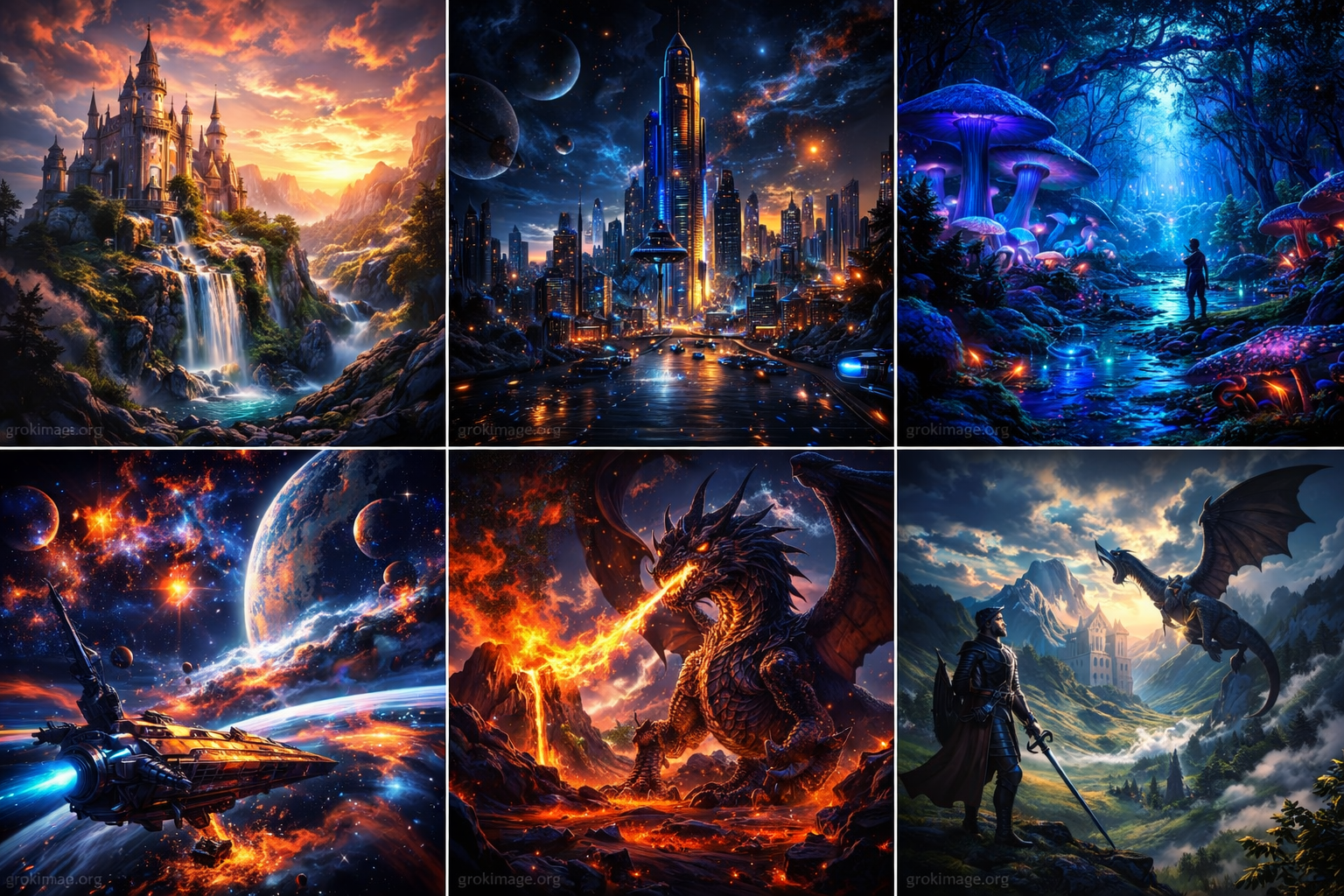
This workflow turns a prompt or still image into short-form motion that feels social-first, not editor-heavy. The appeal is cleaner motion direction and easier testing for clips built for X, TikTok, YouTube, and launches.
Use it for short clips that need a cleaner first three seconds, better hook value, and stronger fit across fast channels.
Plain-language prompts can guide movement, pacing, mood, and framing without forcing a heavy editing workflow first.
Start from one approved frame and push it into motion when the scene should feel alive without rebuilding the concept.
Choose a duration from 1 to 15 seconds, switch between 480p and 720p, and match the aspect ratio to the destination.
Move from an idea or source frame to a playable result in three direct actions.
Describe the scene directly, or upload one still image when the frame already carries the subject and composition.
Set the duration, resolution, and aspect ratio, then describe the movement, camera behavior, and mood.
Submit the task, wait for the result, and review the first seconds before downloading or revising the source frame.
These are real site-owned video generations with their motion prompts and settings. Preview the result, then reuse the prompt in the generator above.
A low tracking shot follows a silver concept car through a rain-lit futuristic city.
Prompt
A matte silver electric concept car accelerates through a rain-slick futuristic city at blue hour. The camera tracks low beside the front wheel, reflections streak across the pavement, and fine mist trails behind the car.
A red panda astronaut floats through plants and water droplets while the camera arcs around the character.
Prompt
A red panda astronaut floats gently through an orbital greenhouse. Leaves and tiny water droplets drift in zero gravity while sunlight moves across the glass and the camera makes a slow arc around the character.
A source image becomes a controlled editorial motion study with realistic fabric weight and a lateral camera slide.
Prompt
The cobalt silk dress turns gently in the gallery as a soft breeze lifts the trailing fabric. The camera slides from left to right and the folds move with realistic weight.
The best value here is speed with pull. It helps you build hooks, social-ready motion, and short clips to test early.
Create short motion for posts, replies, launches, and trend clips that need a quick visual hook.
Turn a prompt or still into punchy promo motion for product demos, creator campaigns, and tests.
Build motion for thumbnails, intros, episode art, or channel promos when static imagery falls flat.
Upload one mockup, hero still, or poster frame and see how the concept feels once movement is added.
Use the current generator controls as the source of truth, and keep these practical constraints in mind before spending credits.
Answers.
It is a short-form video workflow for turning prompts and still images into motion built for teasers, promos, reveals, and clips.
Because it is built for hook testing, short clip formats, stronger scene direction, and motion that feels made for fast-moving feeds.
The appeal is better plain-language direction, cleaner motion from one still image, faster short-form testing, and an easier path from idea to preview.
Use it for teaser loops, promo clips, launch reveals, product motion, creator assets, landing-page motion, and short social concepts.
This page supports Grok Imagine Video 1.5 Preview text to video and image to video, one uploaded source image, 1 to 15 second clips, 480p or 720p, and six aspect-ratio choices including auto.
Start with the hook, movement, and mood you want in the opening seconds. Keep the prompt focused, test one strong direction, and use a better still image when the scene needs more clarity.
Test a short motion direction when the concept is ready to move. If the still needs work first, return to Grok Image Generator, strengthen the image, and animate it here.